Monthly Calendar Widgets · iOS 26
Your iPhone calendar widget, in month view.
See the whole month on your Home Screen, with event names and bars that span multiple days. Connect iOS Calendar or Google Calendar, then choose a design that fits your phone.
Get launch updates. Join the waitlist.
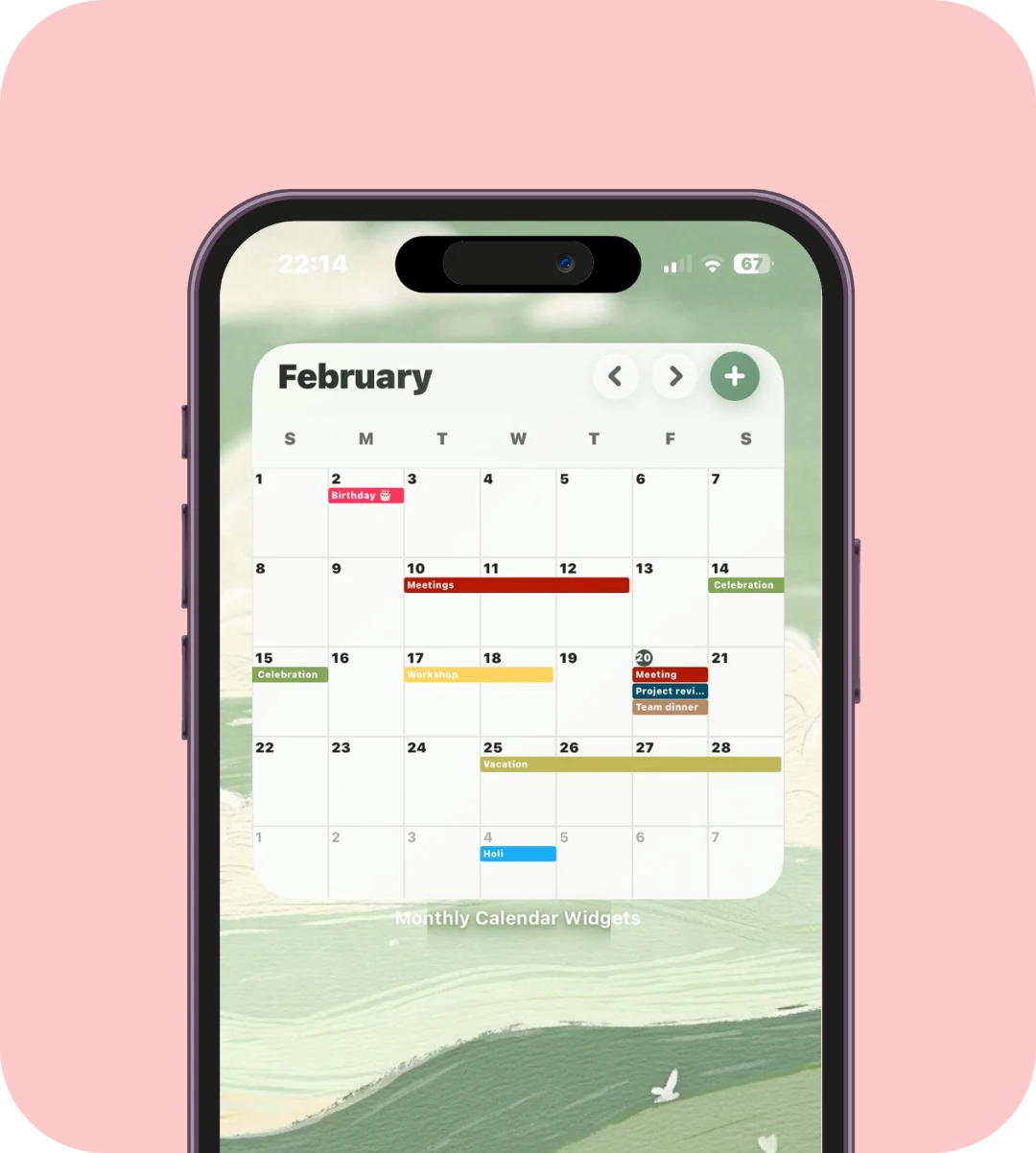
One month. Your kind of design.
These are existing app designs with example calendars. Preview images show sample dates and events; your widget uses your own calendar. iOS applies your selected Default, Tinted, or Clear appearance.
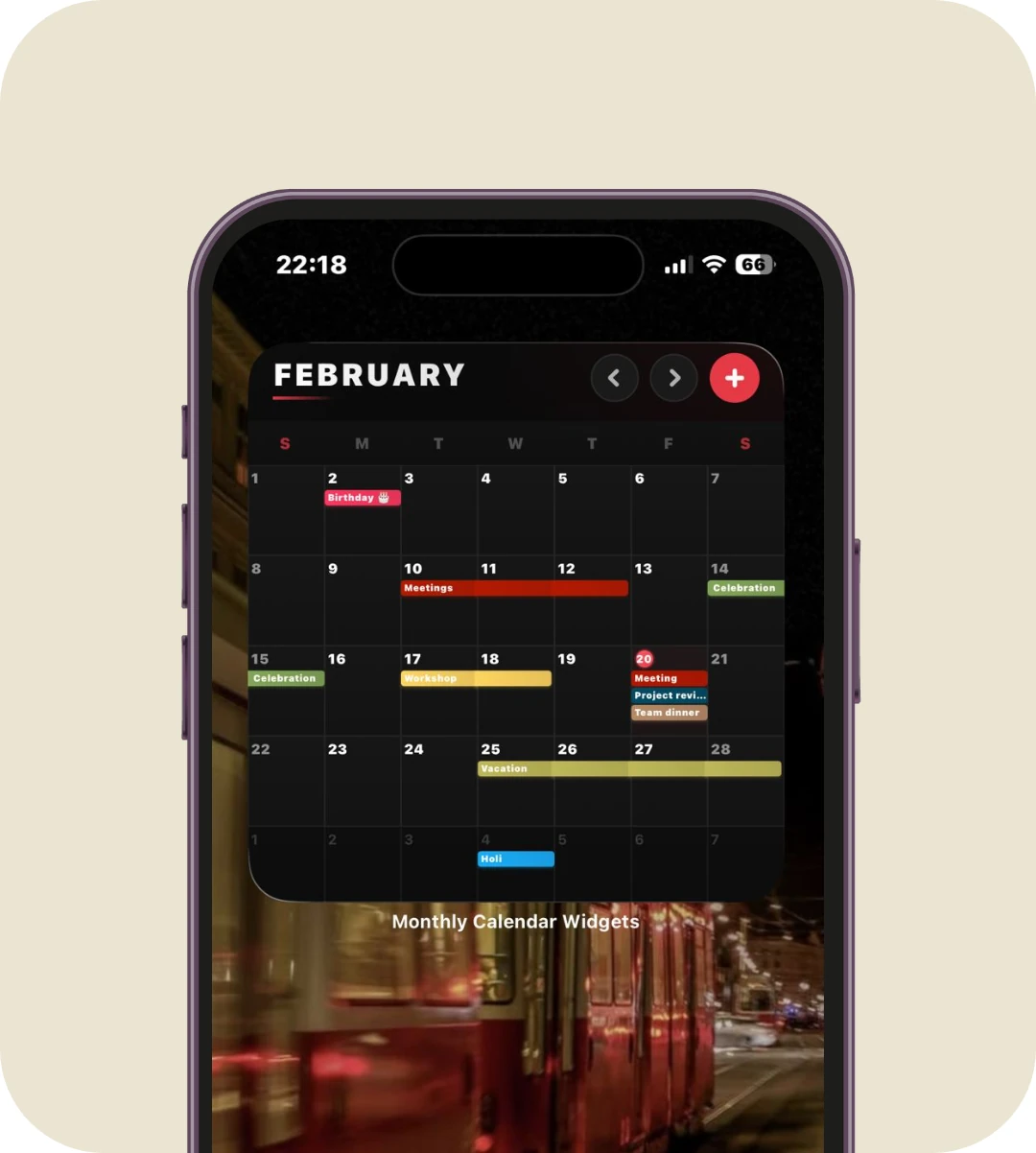
Dark
A dark background with contrasting dates and event labels.
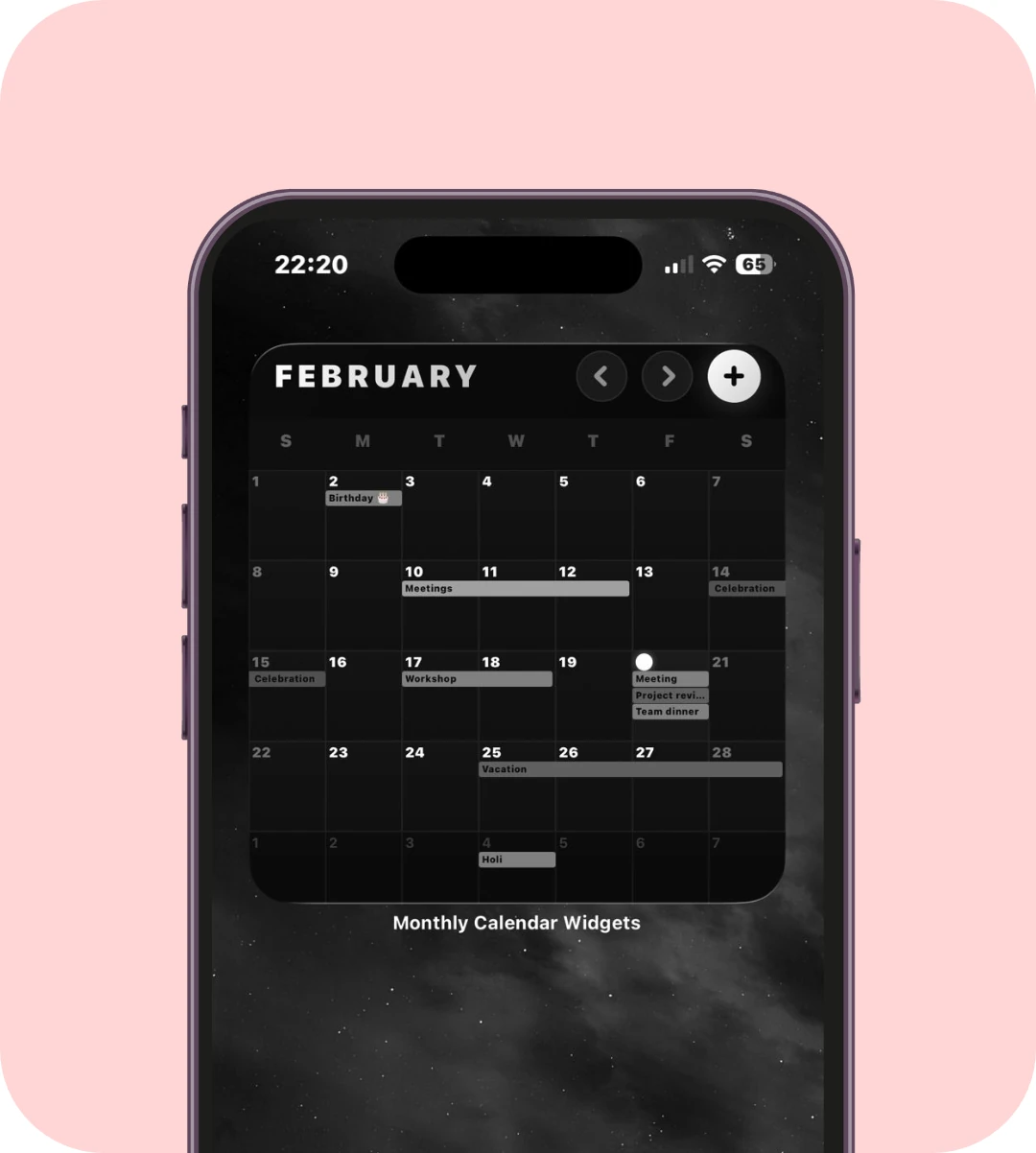
Monochrome
A monochrome calendar for a quieter Home Screen.
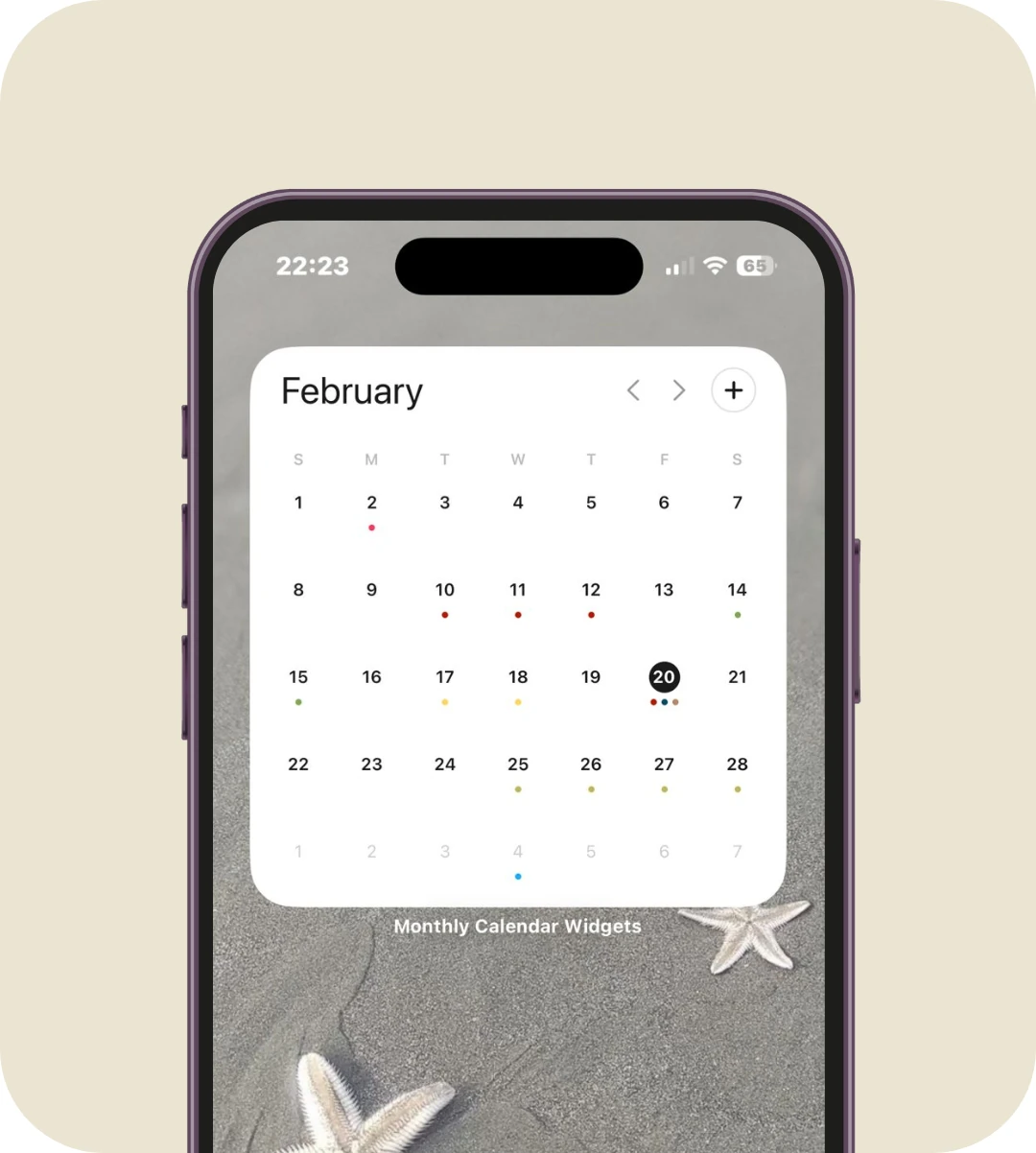
Minimalist
A pared-back full month layout with room for your schedule.
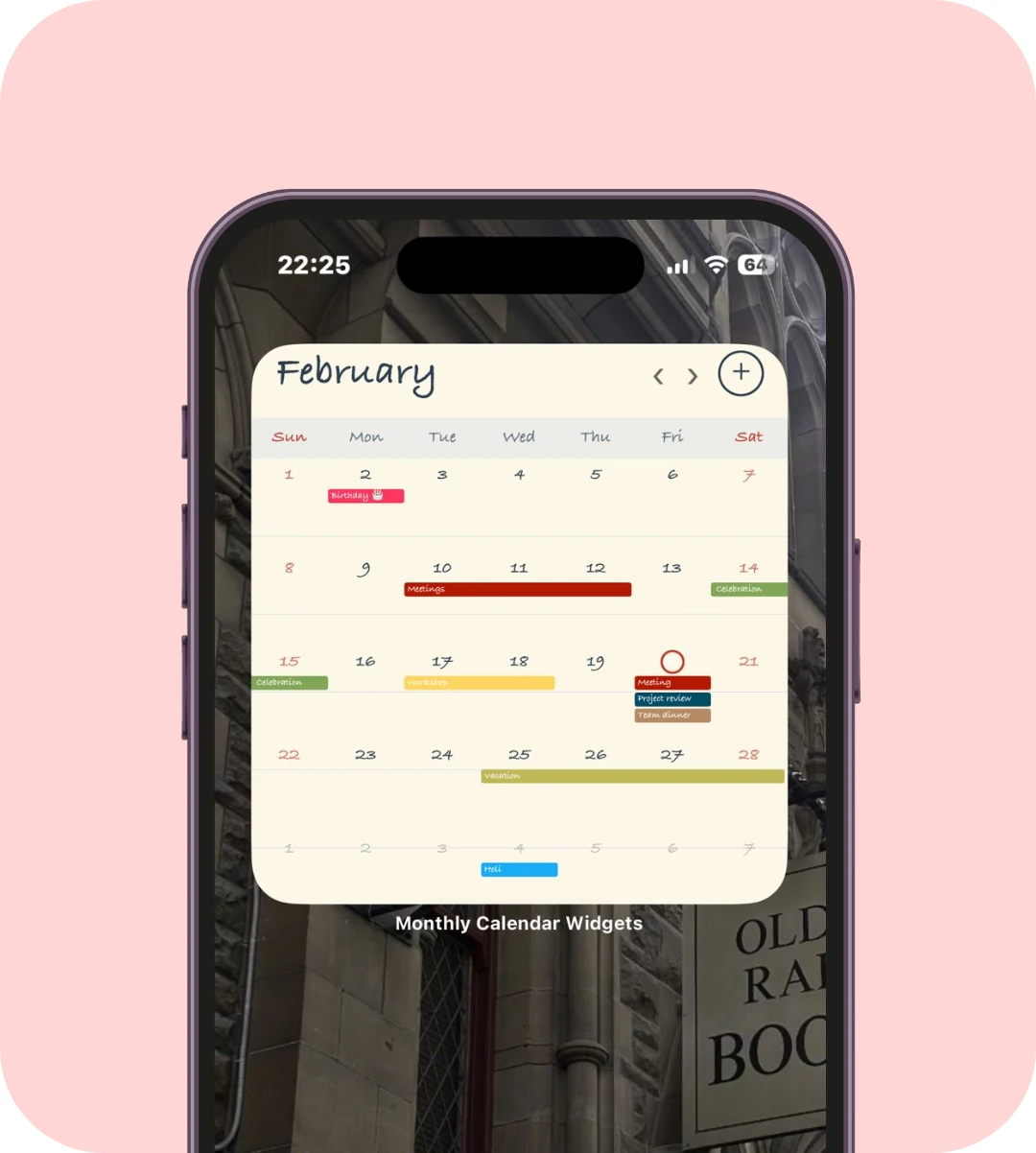
Paper
The paper design pairs a notebook feel with a monthly calendar.
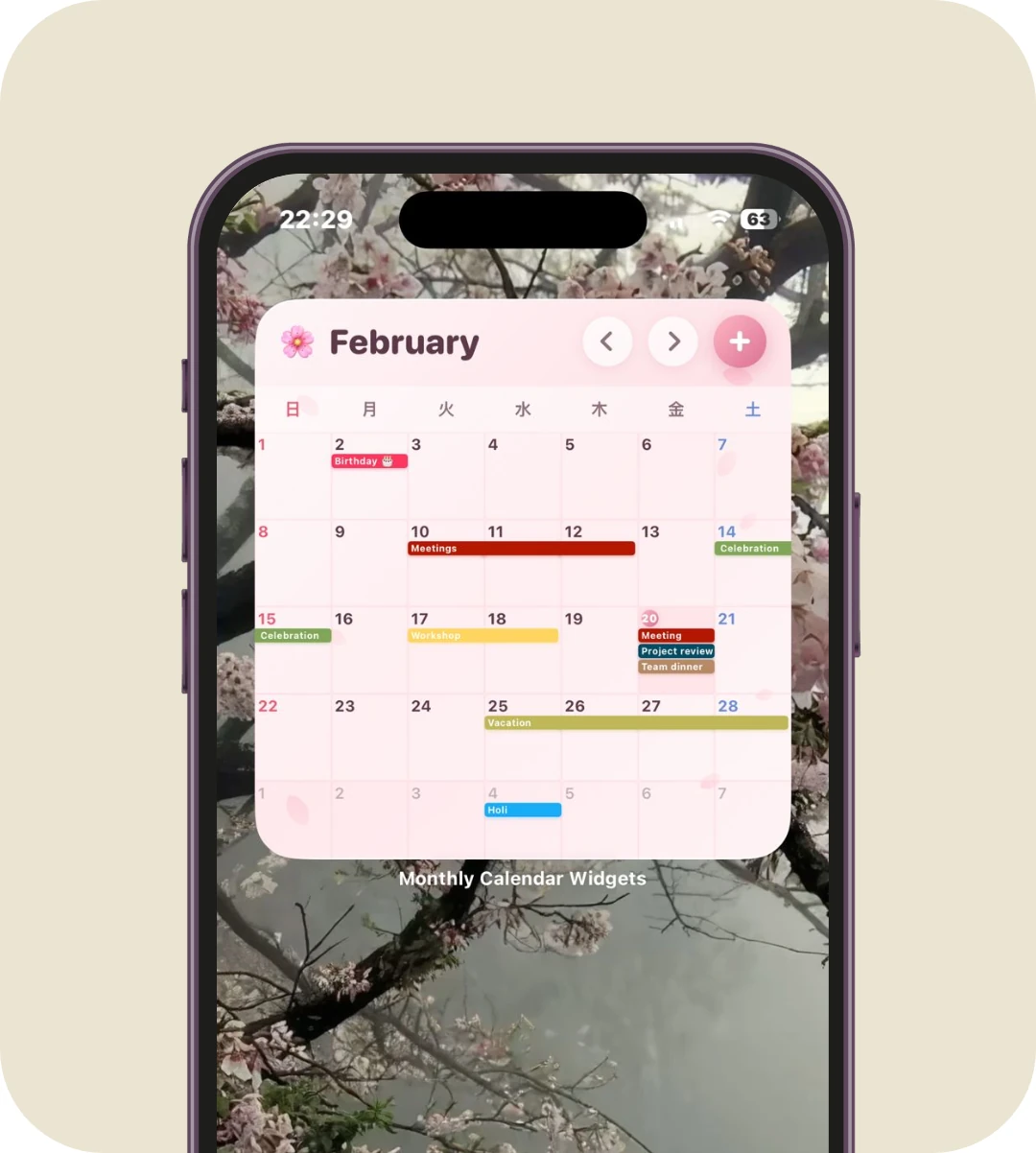
Sakura
A cherry blossom design behind the month and its events.
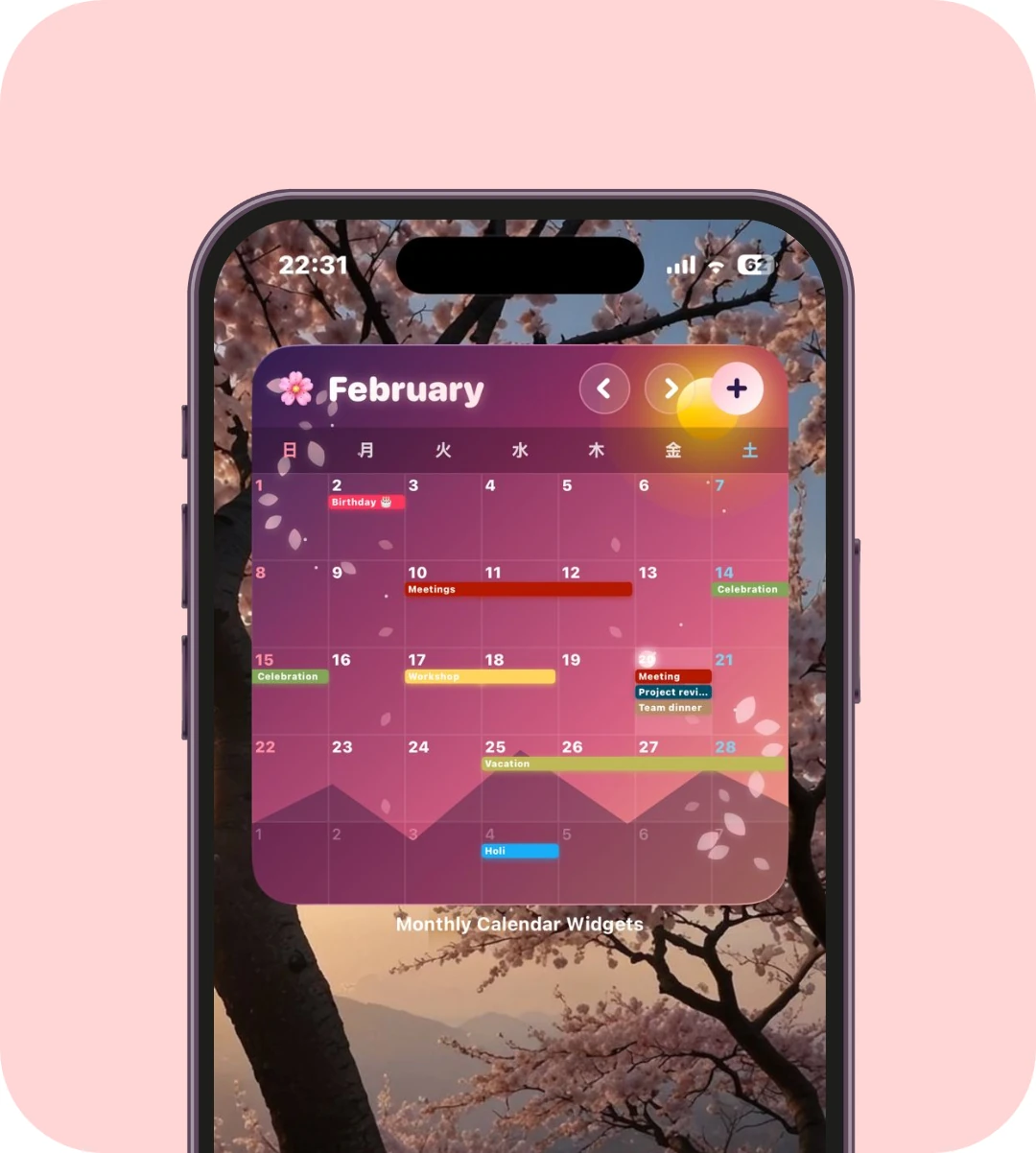
Ukiyo-e
An illustrated month view inspired by Japanese woodblock art.
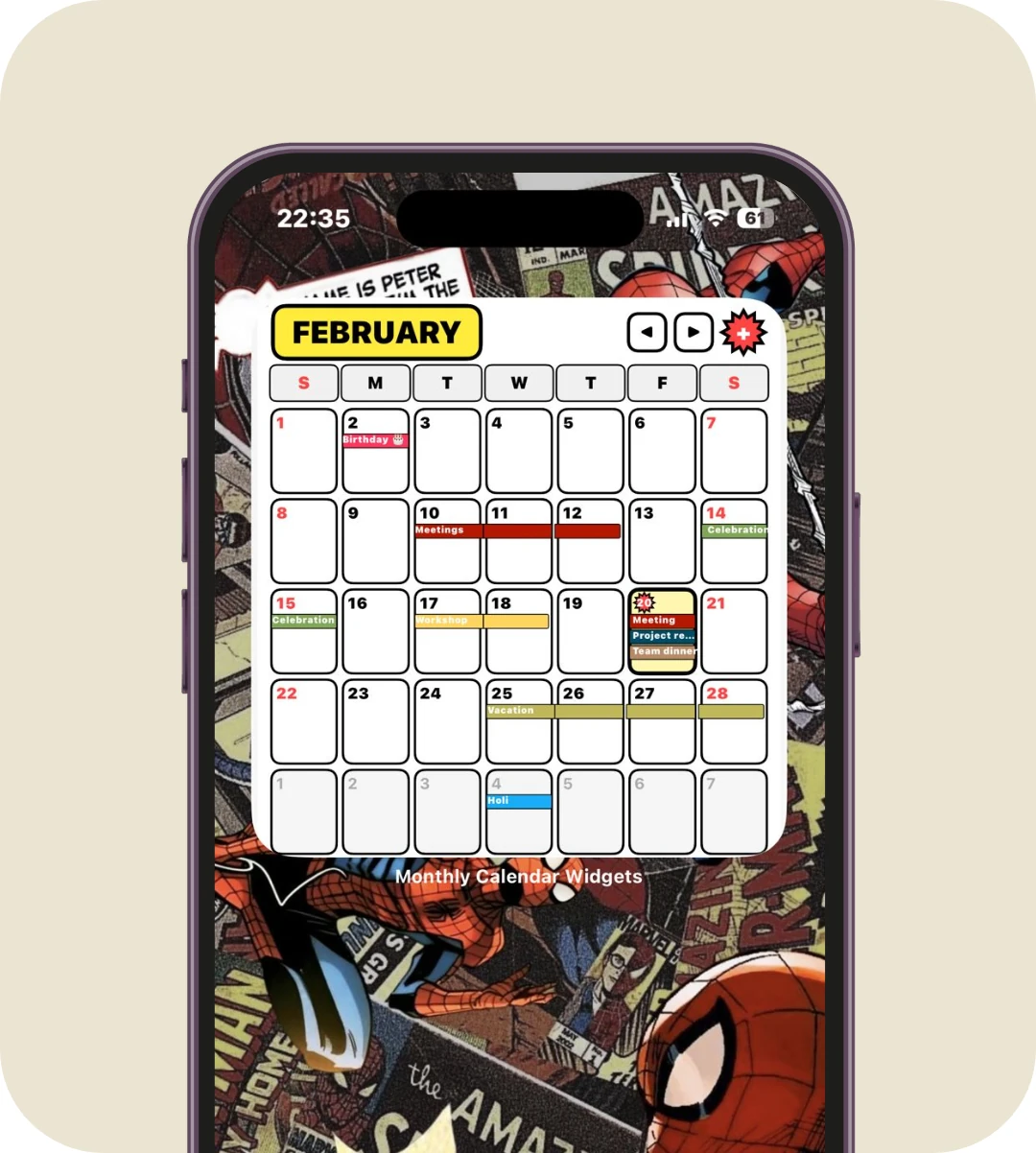
Manga
A graphic manga theme around the same monthly schedule.
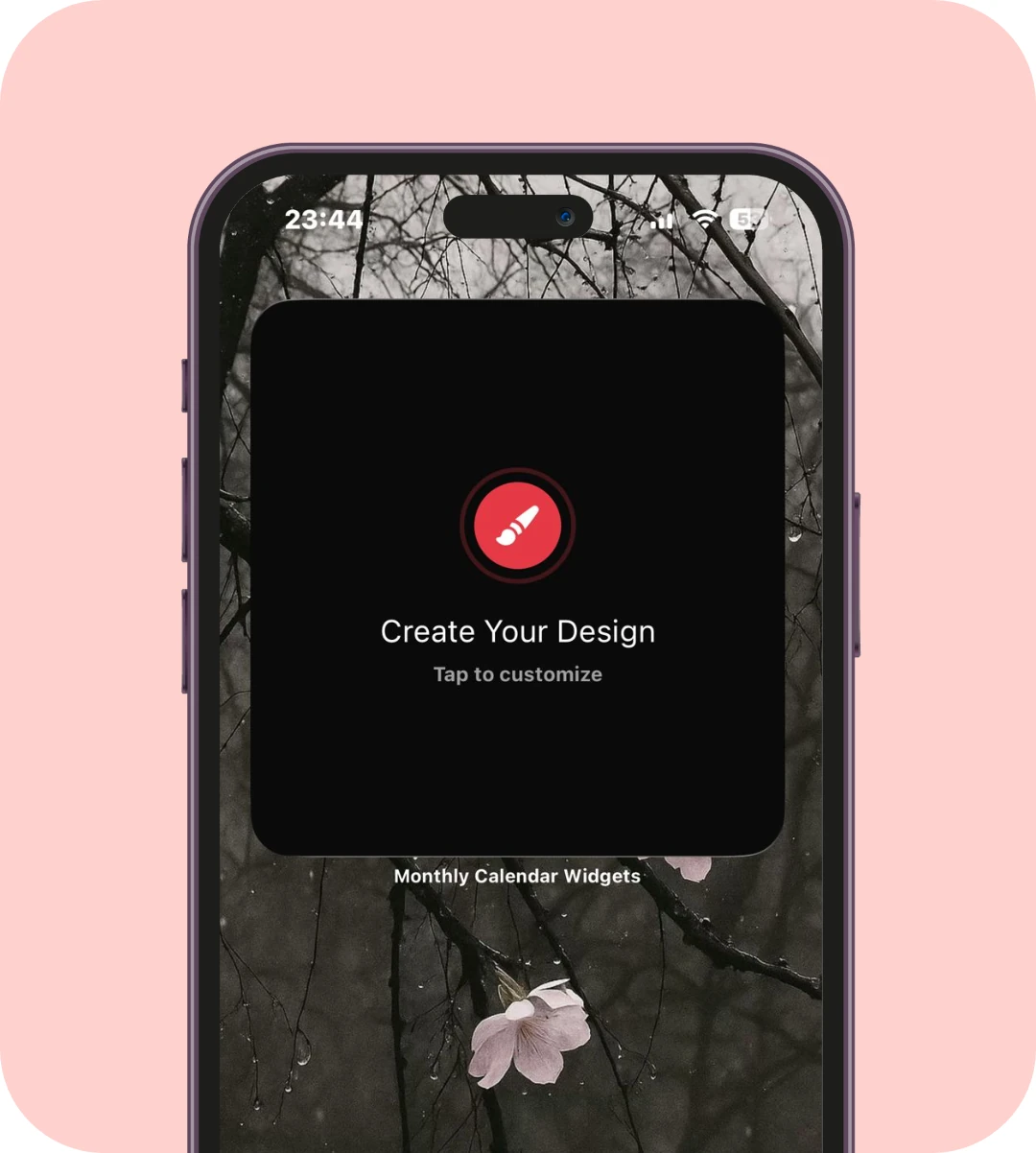
Custom
The custom design starter. Create a saved calendar or photo design in the app.
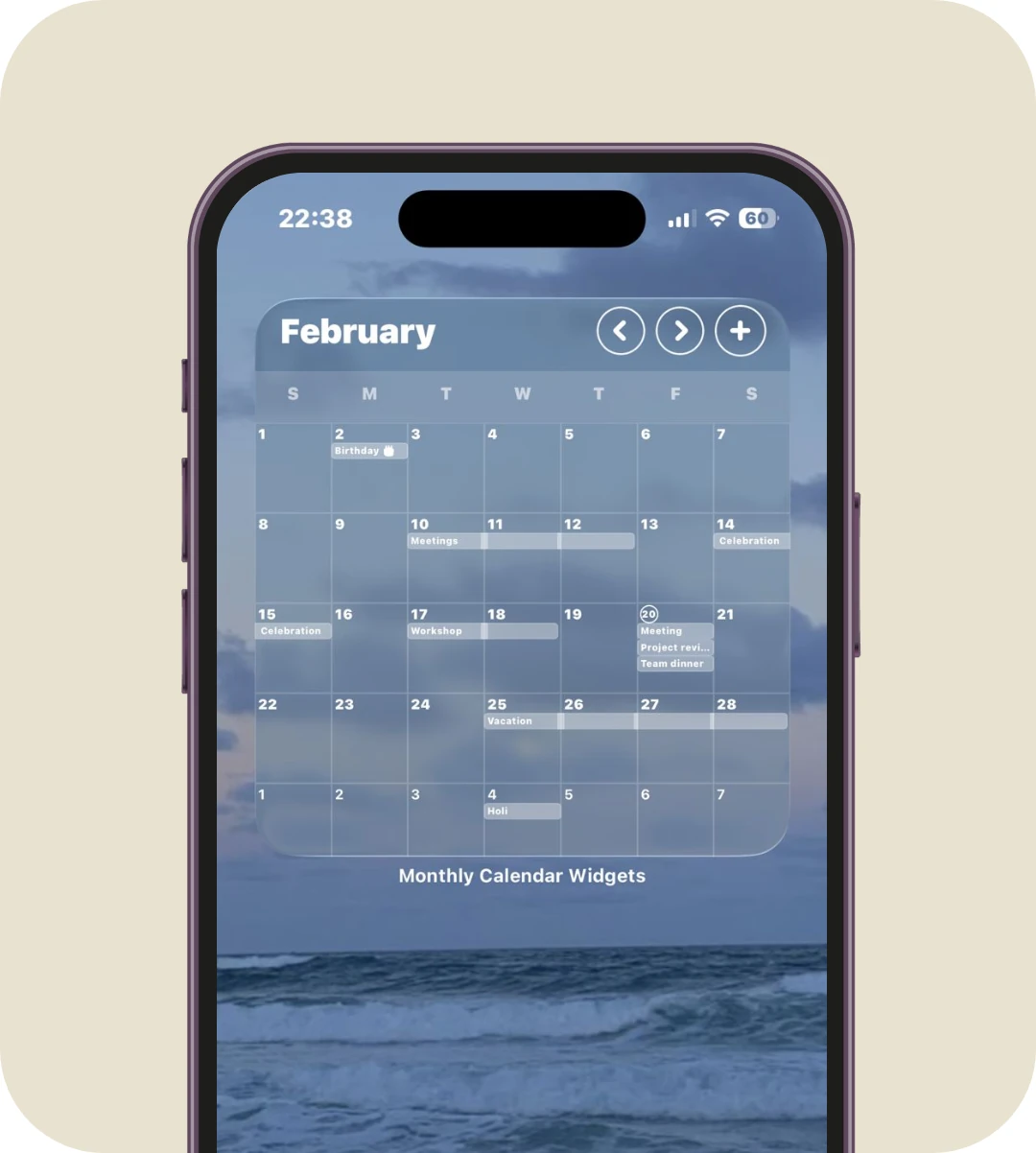
Liquid Glass (iOS 26)
A glass-style month view for an iOS 26 Home Screen.
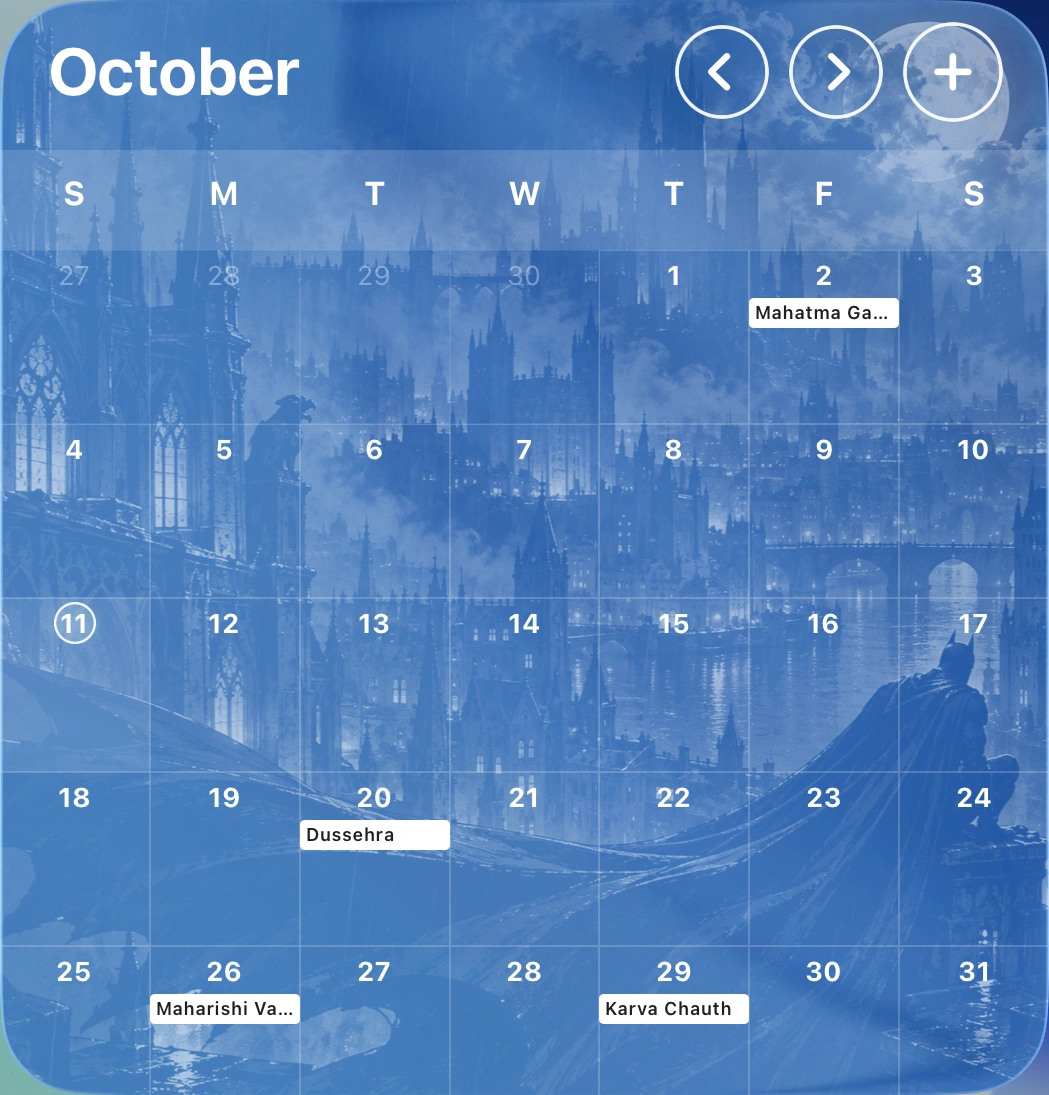
Tinted photo calendar
A saved photo calendar in Tinted appearance, captured from the native widget. Choose Photo only for a photo without dates or events.
Compare monthly, weekly, small, and tinted previews in the widget catalog →
How to add a month-view calendar widget on iPhone
- Open Monthly Calendar Widgets and connect iOS Calendar or Google Calendar for your events.
- On your Home Screen, touch and hold an empty area. Tap Edit → Add Widget, then search for Monthly Calendar Widgets.
- Choose the large Monthly entry and tap Add Widget. This is the full month grid.
- Touch and hold the added widget and tap Edit Widget. Tap the current name in Design, such as Classic or Paper, to see the available styles and choose one.
For a photo calendar, save a Calendar design with a Photo background in the app. Add Custom Monthly 1 or Custom Monthly 2, then choose the saved design in Edit Widget → Design. Choose Photo only instead if you want an image without dates or events. Custom Home Screen widgets require Pro.
Read the complete setup and photo guide →Can I see Google Calendar events in month view?
Yes. Connect Google Calendar in the app and use the Monthly widget to show synced events in the full month grid. Check calendar permissions and sync if events are missing; iOS controls widget refresh timing.
Which widget size shows the whole month?
Choose the large Monthly widget for the full month layout shown here. Weekly is the medium calendar choice, and Small is the compact choice. Each widget keeps its own design selection.